PADD
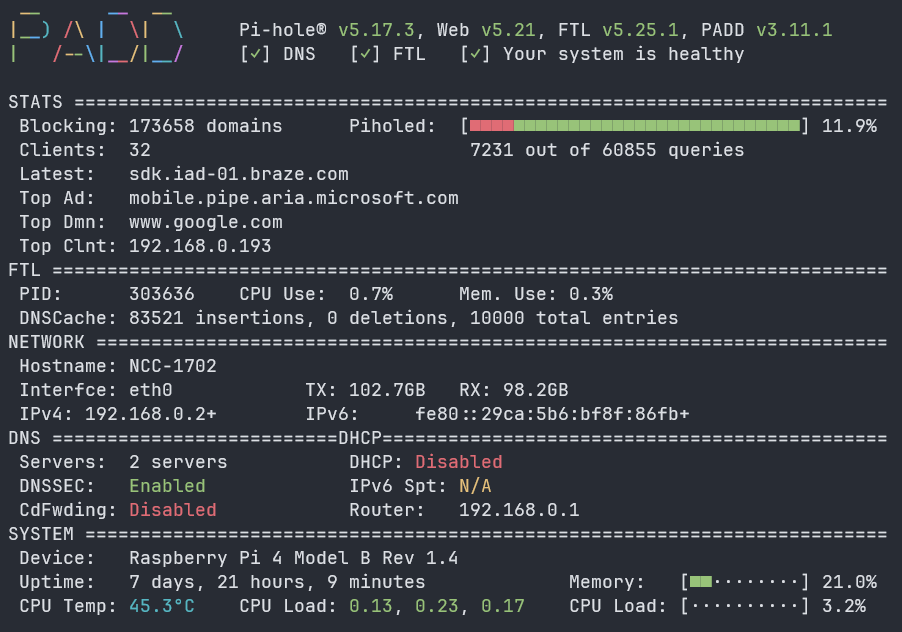
PADD (Pi-hole® Ad Detection Display) is a terminal dashboard for Pi-hole, showing live stats — queries, blocking percentage, DNS/FTL status, network info, and system health (CPU, memory, temperature, uptime) — all from the console.
On NCC-1702, PADD runs full-screen on the Pi's attached 7" official Raspberry Pi touchscreen (via tty1), so I get an always-on physical readout of Pi-hole's status without needing to open the web UI.
Installation
Installed using the official install script:
This drops padd.sh into the user's home directory (/home/xander/padd.sh on NCC-1702).
Running as a systemd service
Rather than running PADD manually in a terminal session, it's set up as a systemd service so it starts automatically on boot and re-attaches to the physical display (tty1):
/etc/systemd/system/padd.service:
[Unit]
Description=PADD Pi-hole Dashboard
After=network.target

[Service]
User=xander
WorkingDirectory=/home/xander
ExecStart=/home/xander/padd.sh
Restart=on-failure
RestartSec=5
StandardInput=tty
StandardOutput=tty
TTYPath=/dev/tty1
TTYReset=yes
TTYVHangup=yes
TTYVTDisallocate=yes

[Install]
WantedBy=multi-user.target
Enable and start it:
Authentication (Pi-hole v6+)
Since Pi-hole v6, the web UI and API require authentication, and PADD needs to authenticate against the FTL API to pull stats — a plain unauthenticated connection is no longer enough.
Rather than storing a password in the service file, the cleanest option (and the one used here) is to add the service user to the pihole group. This lets PADD read /etc/pihole/cli_pw directly and authenticate without any credentials stored in the unit file:
A reboot (or fresh login) is needed for the group membership to take effect.
Note
If you'd rather not use group membership, PADD also accepts a --secret flag on ExecStart — but this stores the password in plaintext in the service file, so group membership is the preferred approach.